
Stop the Scroll: How a One-Second Delay in LCP Kills Your Conversions
A one-second delay in Largest Contentful Paint (LCP) can cost your WordPress site up to 7–20% of conversions. In our experience at WordPress10MS, even half-second improvements to LCP dramatically boost engagement and sales. By making core web vitals (especially LCP) a priority, you prevent users from abandoning your page before it even finishes loading. Below, we explain why LCP matters so much (beyond “fast = good”), share WordPress-specific optimizations under the hood, and give CRO-focused design tips to keep users scrolling – not closing the tab.
Key Takeaways
- Fix LCP to win conversions. Every extra second of LCP hurts: a 1s delay can cut ~7–20% of conversions. Make fast loading a top priority.
- Optimize under the hood. Use PHP 8.4 (performance boost), good hosting, and caching to reduce server response time. Eliminate render-blocking CSS/JS by inlining critical CSS and deferring scripts.
- Streamline content. Compress and preload hero images, use Gutenberg blocks for above-the-fold content, and disable heavy plugins. Each improvement accelerates LCP.
- Design for engagement. Show CTAs and content in the first paint. Use lazy-loading for offscreen media and placeholders to avoid blank screens. A swift, smooth user flow builds trust and sales.
By seeing page speed as a conversion strategy, not just a tech metric, you turn performance work into profit. Start optimizing your WordPress Core Web Vitals (LCP, etc.) today, and watch scrolling users turn into customers.
Why LCP Matters for Conversions
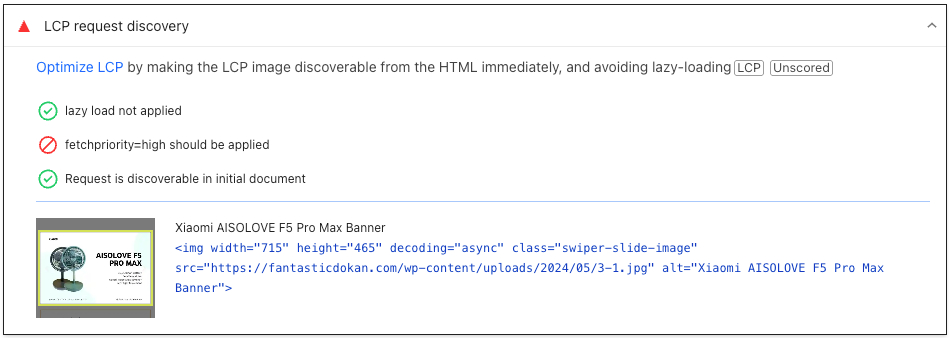
In simple terms, LCP measures how quickly the main content of your page becomes visible (typically the hero image or heading). If that large content takes too long, visitors hit the back button or bounce. In practical terms, research shows huge conversion losses from slow LCP: Google found that in retail, a single-second mobile delay can cut conversions by up to 20%. Audits of live sites confirm this: a 1s lag often shaves ~7% off sales. In our WordPress10MS audits, we frequently see mobile visitors abandon pages that stall longer than 2–3 seconds. Each user who “stops scrolling” is potential revenue gone.
From an SEO standpoint, LCP is also a Google ranking factor. Faster pages get better search visibility and more clicks. Core Web Vitals (LCP, INP, CLS) are explicitly used by Google to measure real user experience. In short, slow LCP hurts both conversions and SEO. Our clients who optimize LCP (often via better hosting, smaller images, and caching) see not just a nicer UX but higher revenue.
Under the Hood: What Causes Slow LCP?
Here’s what really happens behind the scenes when LCP drags, and how to fix it in WordPress:
- Server Response and TTFB. A slow Time-To-First-Byte means the browser waits longer before it can even start rendering content. Often this is due to poor hosting or heavy database queries (many plugins, complex themes). Under the hood, use object caching (Redis/Memcached) and upgrade to PHP 8.4+ (which has notable performance improvements) to speed up PHP execution. Even simple tweaks like enabling OPcache and using a PHP-only cache plugin can cut milliseconds off TTFB.
- Render-Blocking Resources. CSS and JavaScript that load before the main content will delay LCP. For example, a bulky theme stylesheet or multiple font files can block rendering. To fix this in WordPress, inline the critical CSS for your above-the-fold content (WordPress lets you add inline CSS via hooks or plugins), and defer non-critical CSS. Load JavaScript asynchronously (using
wp_enqueue_scriptwith theasync/deferparameters or a plugin that does it). Ensure Google Fonts usefont-display: swapin CSS to avoid rendering-blocking font loads. Every millisecond of blocked rendering is a lost conversion opportunity. - Large Images or Hero Content. Often, the “largest content” is the big header image or video on a page. If it’s unoptimized, it dominates LCP. WordPress has built-in lazy-loading, but you must still optimize. Use the Gutenberg Cover or Hero block with a compressed, appropriately sized image (prefer WebP). Preload the hero image by adding a
<link rel="preload" as="image">for it in your theme header. Plugins like WP Rocket or FlyingPress can do this automatically. Also, avoid sliders or carousels for key content – each slide image adds load time. Under the hood, make sure the<img>has correctwidthandheightattributes so the layout is stable (improving CLS as well). - Excess Plugins and Widgets. Each plugin can add CSS/JS that blocks rendering. Audit active plugins: if a feature is non-critical (social feeds, unnecessary fonts, fancy animations), disable or remove it. For the remaining plugins, check if they support code splitting or conditional loading. For example, disable contact form scripts on all but form pages. Under the hood, you can use action hooks (
wp_enqueue_scripts) to dequeue scripts on specific templates. We often see big gains by removing a few heavy plugins rather than chaining performance fixes.
By addressing these under-the-hood factors, your WordPress pages render the largest content much faster. The result: LCP drops from, say, 5s to 2s or below, and those “stopped scrolls” instantly start scrolling and clicking.
Actionable UX & CRO Tips (WordPress-specific)
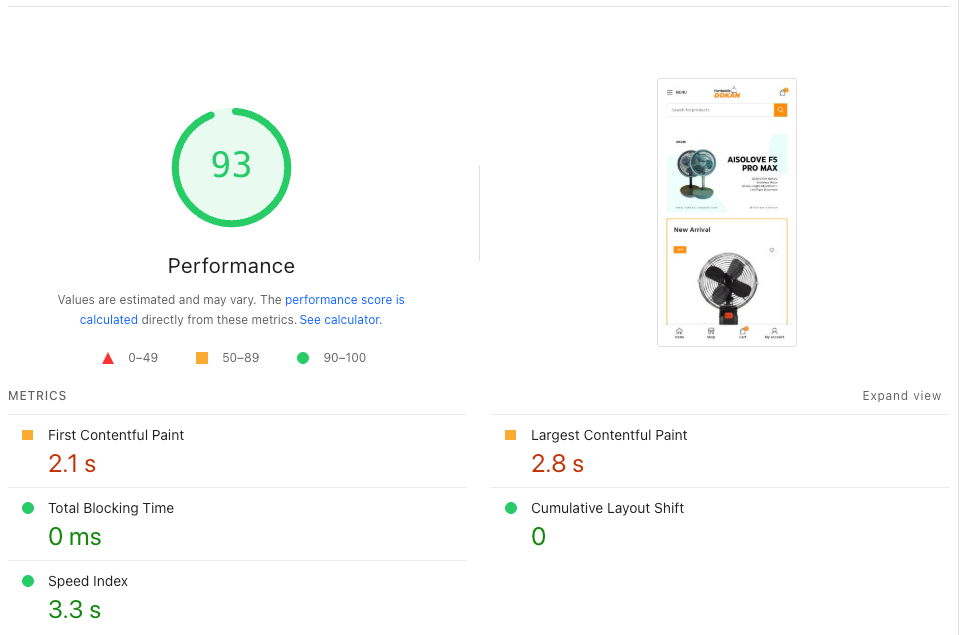
Faster LCP isn’t just good for SEO – it directly improves user experience and conversions. Here are concrete steps to design your pages for speed and higher conversion:
- Place Critical CTAs on Quickly Loaded Content. Use Gutenberg block patterns to build your hero section with a static background (Cover block) and a clear “Call to Action” (Button block). Because this above-the-fold block loads first, users see a button or form immediately. For example, a hero with text and a “Subscribe” button. Preload any background image and use native blocks (they’re leaner than many page-builder widgets). This way, a user can click or fill the form before slower elements (like below-the-fold content) even load.
- Skeleton or Placeholder UI. For interactive elements (like a price or image gallery), use CSS to show a lightweight placeholder. For example, apply a gray skeleton background on a div (via a simple CSS class) that is replaced by the real image when loaded. WordPress theme hooks allow you to add these wrappers around dynamic elements. This keeps the layout stable and gives visual feedback, so users don’t perceive a “freeze.”
- Lazy-Load Non-Essential Images. Ensure your WordPress theme or a plugin lazy-loads offscreen images. Core WordPress already lazy-loads by default, but double-check any custom templates. Lazy load images that aren’t the LCP element (e.g., product images lower on the page) so the initial render focuses on the hero content. This reduces initial network requests.
- Preconnect to Critical Origins. If you’re fetching fonts or resources (like Google Fonts or a CDN), add
<link rel="preconnect">tags (WordPress hooks let you inject these in<head>). This lets the browser open early connections, shaving off DNS lookups or TLS handshakes. Evenpreconnectto your CDN domain can speed up image delivery. - Minimize CSS and JS. Combine multiple style sheets into one where possible, and minify code. Many WordPress plugins (like Autoptimize) can do this at deploy time. Avoid inline scripts/styles in your page content for key elements; instead, put them in theme files so they can be cached. For critical buttons or forms, ensure the CSS that styles them is part of the critical path so they appear styled immediately.
- Mobile-First Design. Since a majority of WordPress traffic is mobile, use responsive images (
srcset) to serve smaller images to mobile devices. In your WordPress customizer or theme, upload multiple sizes for hero images. Also, avoid large fixed-size elements on mobile; fluid layouts load faster. Keep tap targets large enough, but overall use a lightweight theme framework designed for speed.
By applying these WordPress-native fixes and CRO tactics, you not only speed up LCP, but also enhance the user experience. In practice, we see clients’ bounce rates drop and time-on-page climb as soon as the hero content loads quickly with clear CTAs.
FAQs
- Q: What is Largest Contentful Paint (LCP) and why does it matter?
A: LCP is a Core Web Vital metric that measures how long it takes for the largest element (often a hero image or heading) to appear on screen. It matters because it reflects when users see meaningful content. In WordPress, a slow LCP means visitors wait longer for the page to load and often leave, so improving LCP is crucial for keeping users engaged and converting. - Q: How does slow LCP impact my WordPress site’s conversions?
A: A slow LCP hurts conversions significantly. Industry data shows that even a 1-second delay can reduce conversions by around 7%, and by up to 20% in some cases. In practical terms, visitors abandon slow pages before taking action (like buying or signing up). By speeding up LCP, you keep more users scrolling and completing conversions. - Q: What can I do to improve LCP on my WordPress site?
A: Key fixes include optimizing your server (better hosting, PHP 8.4, and caching) and reducing render-blocking resources. In WordPress, make sure your hero images are compressed and preloaded, lazy-load other images, and inline critical CSS for above-the-fold content. Disable or defer any heavy plugins or scripts on the initial page. Using Gutenberg blocks efficiently (e.g, a Cover block for your hero section) and addingpreconnectLinks for fonts/CDNs are concrete steps that improve LCP. - Q: How can I measure LCP on my WordPress site?
A: You can measure LCP using tools like Google PageSpeed Insights, Lighthouse (in Chrome DevTools), or the Core Web Vitals report in Google Search Console. These tools will report your LCP metric and suggest optimizations. For ongoing monitoring, WordPress plugins like Site Kit by Google or third-party analytics can track real-user LCP, helping you see improvements over time.

Leave a Comment