
How to Customize Your WordPress Theme? (Beginner’s Guide)
Customizing your WordPress theme is an exciting journey that allows you to tailor your website’s appearance and functionality to suit your brand or personal style. In this beginner’s guide, we’ll walk you through various methods and tools available in WordPress to customize your theme effortlessly.
Following is a list of topics we’ll cover in this guide:
1. Why Customize Your WordPress Theme
2. Using the Default Theme Customizer
3. Using the Full Site Editor in WordPress to Customize a Theme
4. Using Legacy Theme Customizer in WordPress
5. Customize Your WordPress Theme with Full Control
6. Customize Individual WordPress Pages with SeedProd
7. Creating a Custom Theme in WordPress with SeedProd
Ready? Let’s get started.
1. Why Customize Your WordPress Theme

Understanding the importance of customizing your WordPress theme can inspire you to create a website that stands out and resonates with your audience. Topics covered may include:
- Brand Identity: Tailoring your theme helps reinforce your brand identity and creates a cohesive online presence.
- User Experience: Customizing the theme enhances user experience by improving navigation, readability, and visual appeal.
- Differentiation: Personalizing your theme sets your website apart from others, making it memorable and unique.
2. Using the Default Theme Customizer
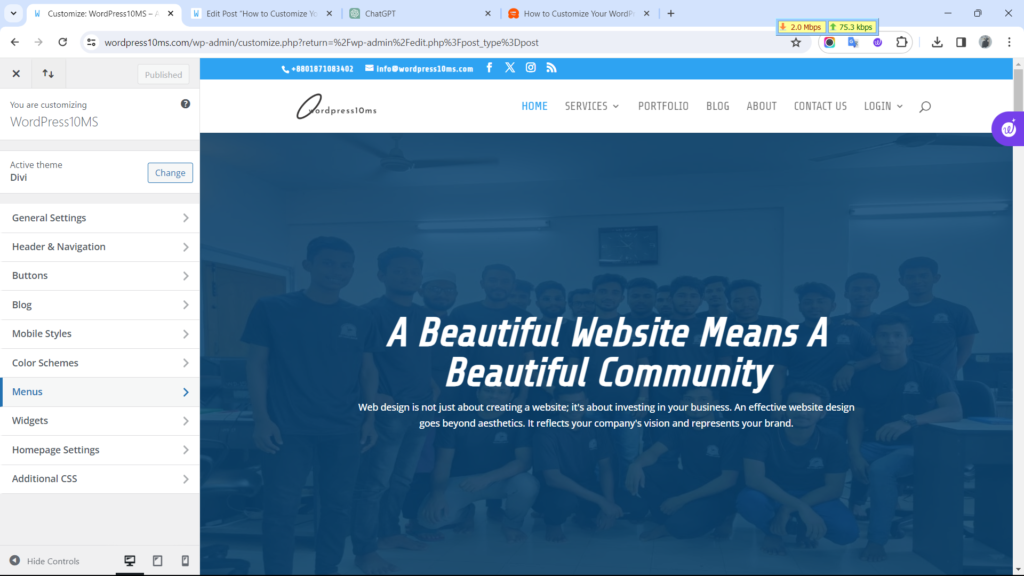
WordPress provides a user-friendly Theme Customizer interface that allows you to make basic adjustments to your theme’s appearance. Here’s how you can utilize it:
- Accessing the Customizer: Navigate to “Appearance” > “Customize” in your WordPress dashboard.
- Making Changes: Customize various aspects such as colors, fonts, header/footer layout, and background image using the intuitive controls.
- Previewing Changes: Preview your modifications in real time before publishing them to ensure they align with your vision.
3. Using the Full Site Editor in WordPress to Customize a Theme
With the Full Site Editor, WordPress introduces a more comprehensive approach to theme customization. Here’s a walkthrough of using this powerful tool:
- Accessing the Full Site Editor: Navigate to “Appearance” > “Full Site Editing” in your WordPress dashboard.
- Editing Global Styles: Customize site-wide elements like typography, colors, and spacing using the Global Styles options.
- Customizing Individual Blocks: Modify individual blocks such as headers, footers, and content sections directly within the editor.
4. Using Legacy Theme Customizer in WordPress
While the Full Site Editor offers extensive customization capabilities, you may still prefer the traditional Theme Customizer. Here’s how to use the Legacy Theme Customizer:
- Accessing the Legacy Customizer: Go to “Appearance” > “Customize” in your WordPress dashboard.
- Making Adjustments: Customize various elements like site identity, menus, widgets, and additional CSS using the familiar interface.
- Previewing Changes: Review your modifications in real-time and adjust them as needed before saving.
5. Customize Your WordPress Theme with Full Control
For users seeking complete control over their theme customization, advanced methods and tools are available. This section may cover:
- Child Themes: Creating a child theme allows you to override and customize specific aspects of your theme without affecting the parent theme’s core files.
- Custom CSS: Adding custom CSS code enables you to fine-tune the appearance of your website beyond the options provided by the theme customizer.
6. Customize Individual WordPress Pages with SeedProd
SeedProd is a popular WordPress plugin that empowers you to customize individual pages or landing pages with ease. Here’s how you can use it:
- Installing SeedProd: Install and activate the SeedProd plugin from the WordPress repository.
- Creating Custom Pages: Utilize SeedProd’s drag-and-drop builder to design visually stunning and unique pages tailored to your specific needs.
7. Creating a Custom Theme in WordPress with SeedProd
For those with more advanced customization requirements, SeedProd offers the ability to create custom WordPress themes from scratch. Here’s a brief overview:
- Theme Builder: Use SeedProd’s Theme Builder feature to design and build custom WordPress themes without writing a single line of code.
- Drag-and-Drop Interface: Utilize the intuitive drag-and-drop interface to add elements, customize layouts, and style your theme effortlessly.
By exploring these methods and tools, you can unleash your creativity and transform your WordPress theme into a reflection of your unique vision and brand identity.
0 Comments